File protection and document workflows for businesses

Personal computer. Company files protected.

Your team can work on their own Windows computers. iGet creates a protected workspace for company documents and blocks unauthorised copying outside it. You decide who has access and which approvals they need.

An application on employee computers. Your server and data in your infrastructure.

Sample kernel log
  1. READ excel.exe ← Z:\Finance\budget_2027.xlsx allowed
  2. EXFIL-WRITE excel.exe → Desktop\budget_2027.xlsx blocked
  3. EXFIL-WRITE explorer.exe → E:\ (USB stick) blocked
  4. NET-BLOCK chrome.exe → new outbound connection blocked
  5. READ winword.exe ← Z:\Contracts\framework_agreement.docx allowed
  6. EXFIL-WRITE winword.exe → OneDrive\agreement.docx blocked

Three layers of protection: from server to drive

  1. 01 Server in your company: permissions, files, panel
  2. 02 Workstation the iGet app and kernel-level protection
  3. 03 Encrypted drive the employee’s workspace
Scroll

What is iGet?

One place to work securely with company documents.

iGet protects and shares company files. It connects an application on employee computers to a management panel in your infrastructure. Add case workflows and further capabilities as your team needs them.

01The problem

Most leaks don’t look like an attack. They look like an ordinary working day: a client list copied to a USB stick, a contract saved to the desktop, a report sent to a private address.

Channels iGet can close

  • USB sticks
  • Desktop and Documents
  • Cloud folders
  • Email attachments
  • Network connections
  • Printing
  • Clipboard
  • Screenshots

Traditional DLP tries to recognise content and guesses whether it is a leak. iGet doesn’t guess: a program that read data from the protected drive cannot write it anywhere else — whatever the file name or format.

  1. 01 · Working with files
  2. 02 · Preventing copies
  3. 03 · The right access
  4. 04 · Document workflows

02iGet in everyday work

From opening a file to approving a request.

01 · Working with files

Your laptop. Company documents in iGet.

Install iGet on an employee’s Windows computer. The team uses company folders and documents on an encrypted workspace drive. Employees keep familiar applications; your company sets access rules.
  • Employee computer
  • Company workspace
  • Open and edit
iGet / Your laptop. Company documents in iGet.
Your laptop. Company documents in iGet.
Product view · demonstration data · Polish interface Enlarge view ↗

02 · Preventing copies

Edit within your permissions. No copy leaves.

Saving a protected company document to the desktop or a USB drive is blocked. The administrator also defines policies for clipboard, printing and network connections. Protection applies to data from the protected drive.

  • Copy outside the drive blocked
  • How it works
  • Synchronisation and permissions
iGet / How it works
Protected workspace

Company workspace

Contract.docxDOCX
Budget.xlsxXLSX
Open and edit
Copy outside the drive blocked
DesktopUSB stick (E:)Cloud folder
Illustration with protection enabled. The administrator defines which channels are blocked.

03 · The right access

Everyone sees only what they are permitted to.

Choose who can view, download or edit a document. Permissions depend on the role, folder and confidentiality level. Permission to work does not have to include permission to send files outside the company.

  • Synchronisation and permissions
  • Company workspace
  • Confirm your identity
iGet / Everyone sees only what they are permitted to.
Everyone sees only what they are permitted to.
Product view · demonstration data · Polish interface Enlarge view ↗

04 · Document workflows

Guide documents through the whole process.

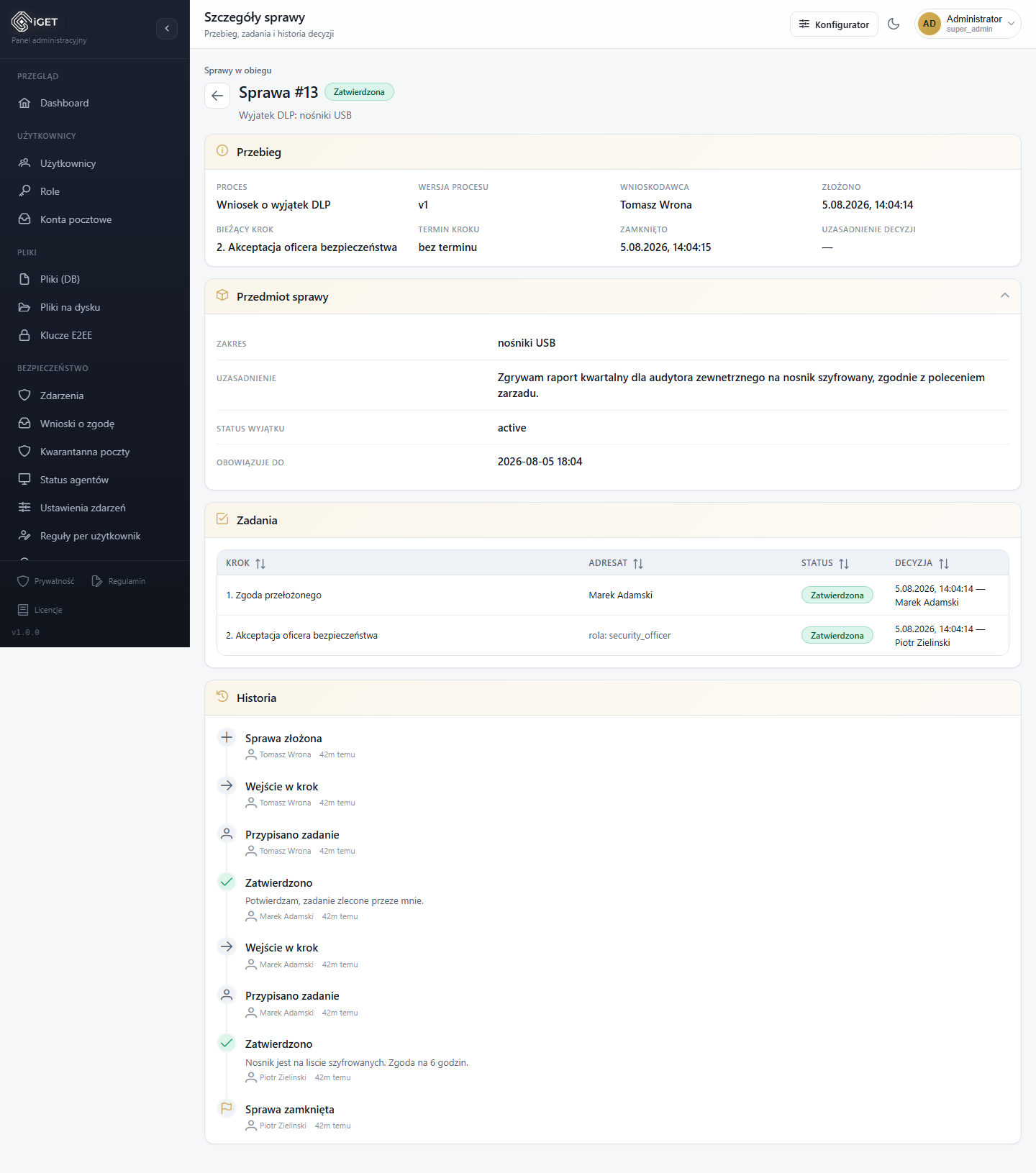
The Case Workflow add-on connects requests, tasks and approvals. Assign owners and deadlines. An approval can grant access or change classification, and the decision history keeps the reasons.

  • Submit a request
  • Collect approvals
  • Keep the history
iGet / Guide documents through the whole process.
Guide documents through the whole process.
Product view · demonstration data · Polish interface Enlarge view ↗

Files, permissions and processes. In one system.

Add-on / Case workflow

From request to decision. Keep every approval in view.

Does a document need approval from a manager and then another reviewer? The Case Workflow add-on guides it through defined stages, with clear responsibilities and a decision history.

  1. 01

    Submit a request

    Select a document and explain what you need.

  2. 02

    Collect approvals

    Tasks go to assigned people or roles, with deadlines and escalation.

  3. 03

    Apply the decision

    A process can grant access, change classification or anonymise a document.

  4. 04

    Keep the history

    See who decided, when and why.

iGet / Case workflow
Case workflow
Product view · demonstration data · Polish interface Enlarge view ↗

03Try it yourself

Drag a document off the protected drive.

This is what working with iGet looks like: documents open normally, and an attempt to take data out ends with one clear message — not a flood of notifications.

Z: · Protected drive iGet

Z: · Protected drive

Destinations

Drag a file onto a destination, or select a file and click a destination.

Event log
  1. All quiet so far. Try to take a file out.

A browser simulation — this is how the iGet app behaves.

04Permissions

Access you can explain to an auditor.

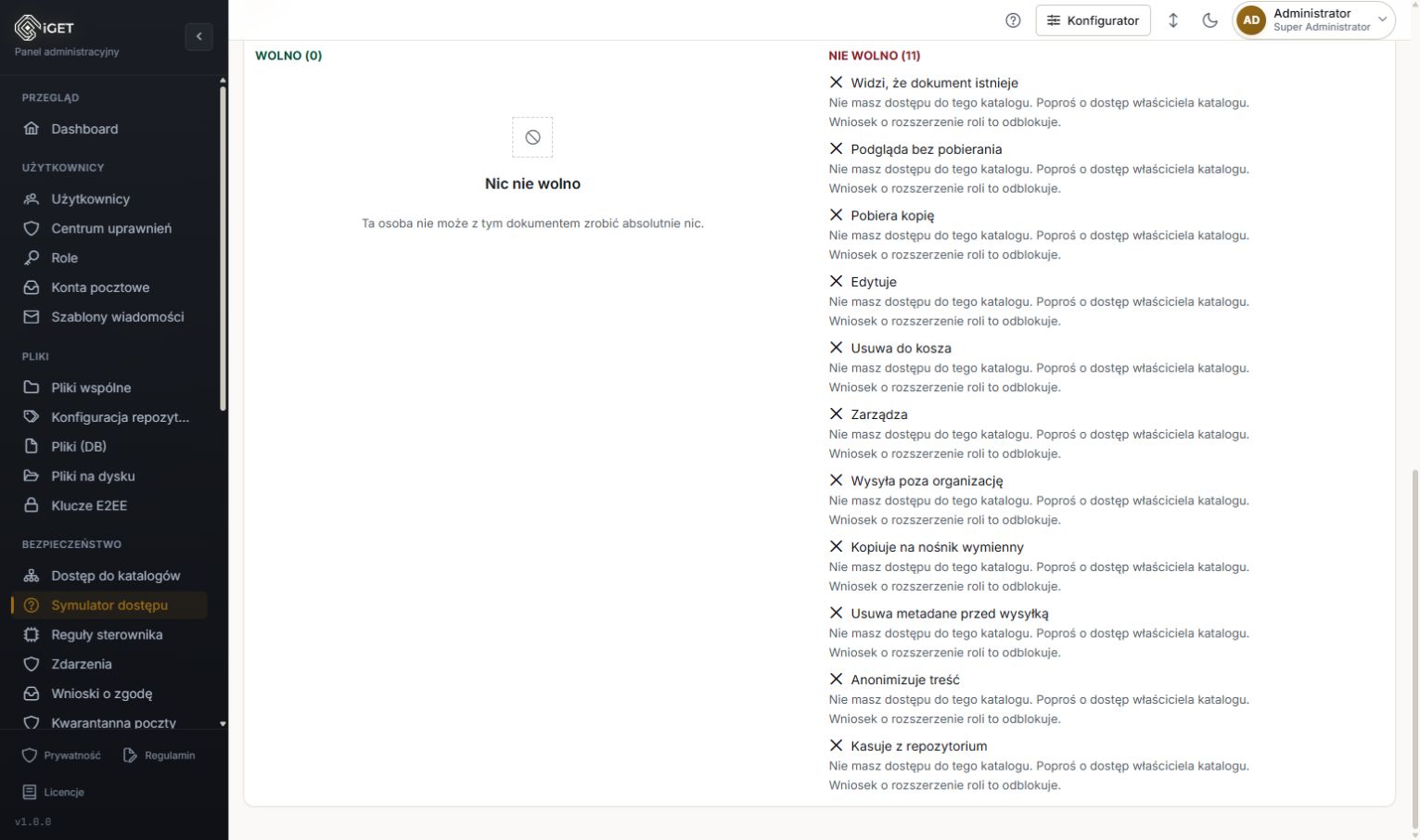
One axis instead of a thicket of exceptions: a role is attached to a folder and grants a specific set of actions at each classification level. Levels are a set, not a ladder — a role can cover levels 1 and 3 while skipping 2.

Role

Folder /Sales

Classification level ↓ · Action → sees previews downloads edits deletes manages sends outside the organisation copies to removable media strips metadata anonymises purges from the repository
0Unlabelled
1Public
2Internal
3Confidential
4Strictly confidential
  • allowed
  • requires identity confirmation
  • level ceiling — nobody may
  • outside the role
  • high risk

Role “Sales rep” in folder /Sales — allowed actions: 16, of which with identity confirmation: 2.

A refusal says what to do next.

  1. brak_uprawnienia The role does not reach this folder request to the folder owner
  2. poziom_poza_uprawnieniem The role does not cover this classification level request to extend the role to this level
  3. czynnosc_poza_rola The role does not cover this action request to add the action
  4. sufit_poziomu Nobody may perform this action at this level no request will help — only reclassification
  5. wymagane_potwierdzenie The operation needs fresh proof of identity confirm with your key and try again
  • Classification levels are granted independently: a role can cover public and confidential documents but not internal ones.
  • Before a change is saved, you see how access will change and for how many documents.
  • A personal exception: access for one person, always with an expiry date and a justification.
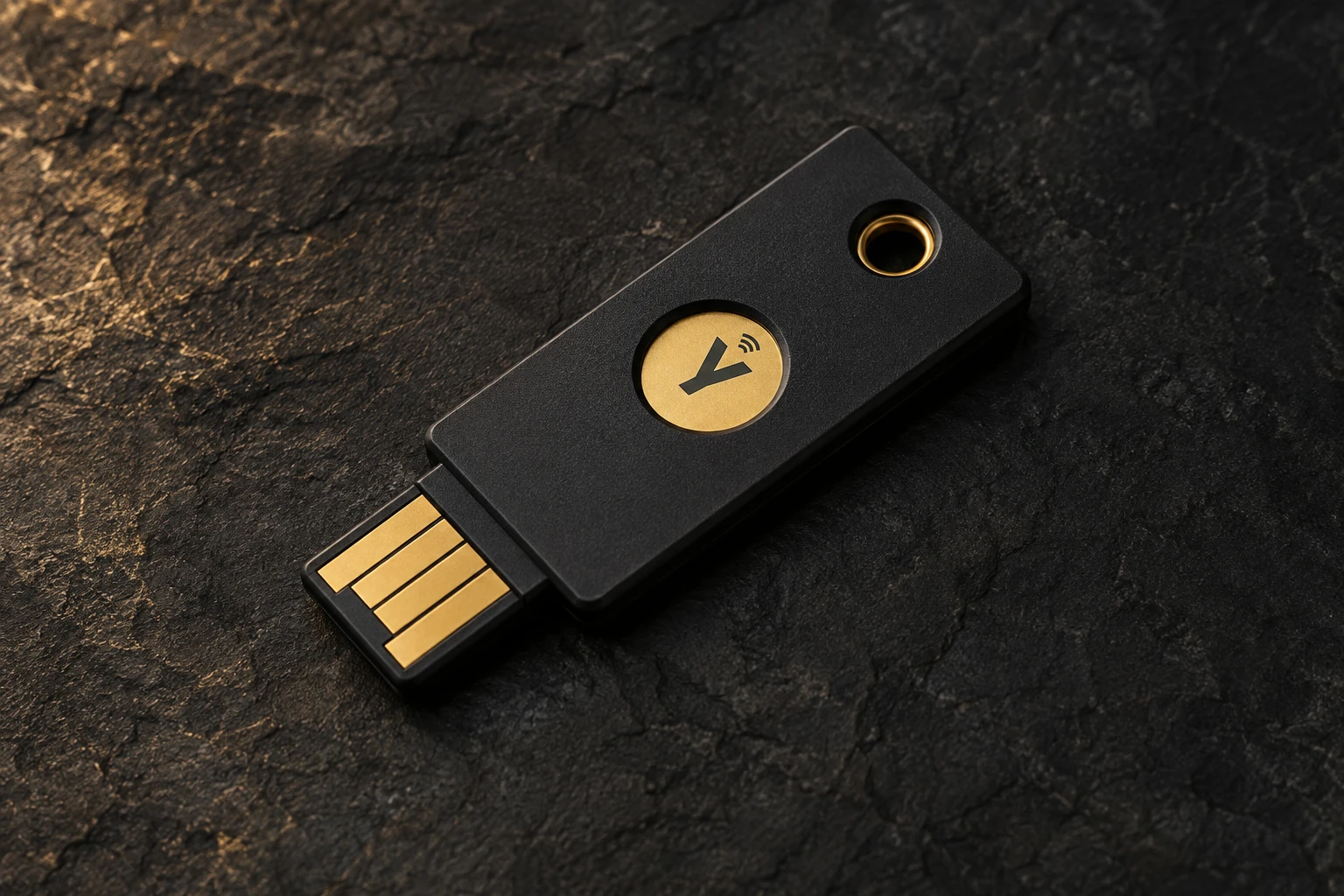
YubiKey — hardware security key visualisation on a graphite background
YubiKey / Confirm your identity

Additional verification for selected operations on confidential files.

05Identity confirmation

The more important the document, the stronger the protection.

Sending outside the organisation, copying to removable media, anonymising, purging from the repository or downloading a highly classified document all require fresh proof of identity. The proof is single-use and valid for 120 seconds.

  • YubiKey (OTP)
  • FIDO2 / WebAuthn key in the panel
  • Windows Hello in the panel
  • Example: sending the payroll to an accounting firm requires confirmation with a key, and the operation is logged.
  • Above a chosen classification level Windows Hello is not enough — a hardware key is required.
  • A reused OTP code is rejected before it is even checked online.

06Platform

Everything a document needs along the way.

The protected drive and the driver are the foundation. Around them is the rest of working with documents: the team, sending, mail, events and updates.

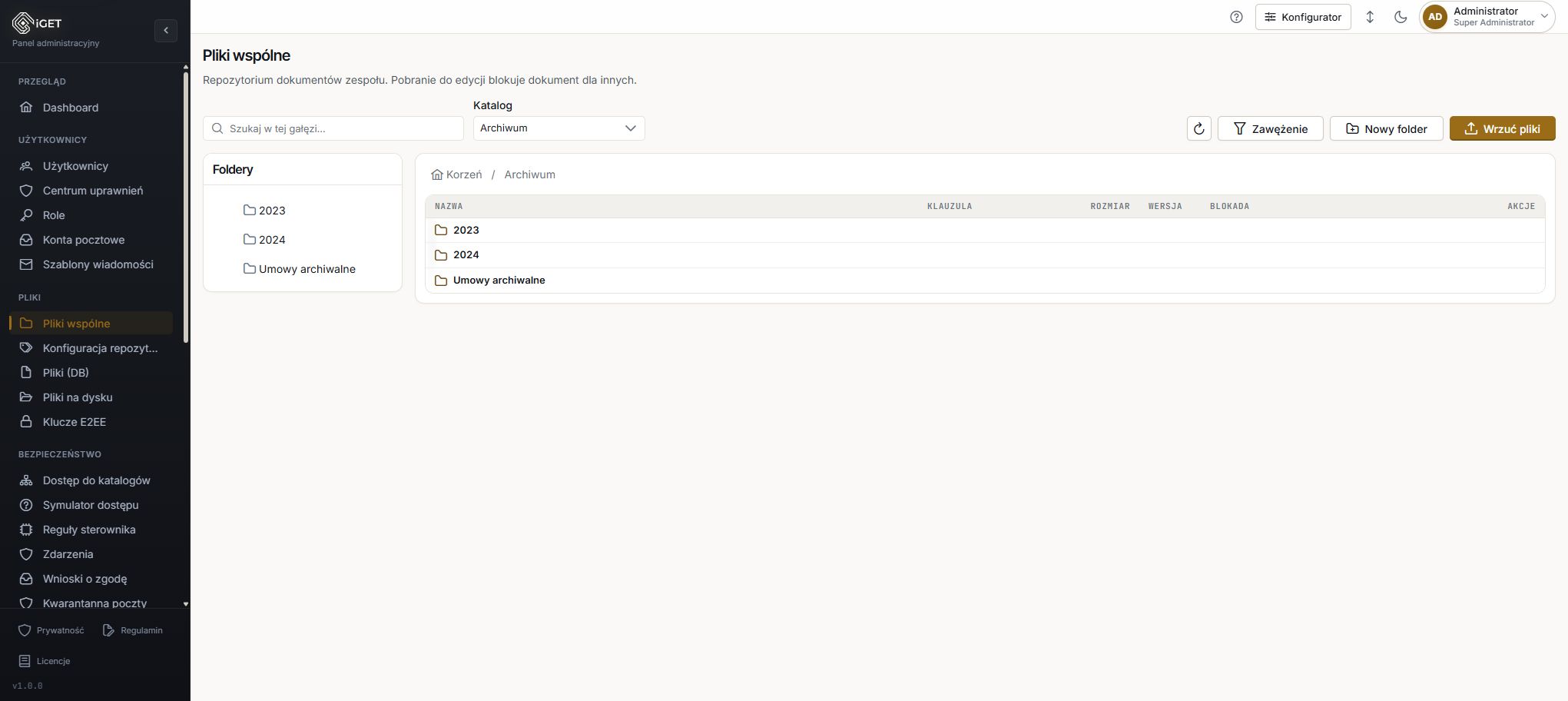
iGet / Team repository
Team repository
Product view · demonstration data · Polish interface Enlarge view ↗

Check-outs and versions

Team repository

Team documents appear in Explorer as ghost files with their real names. You check them out for editing or reading, and returning one creates a new version. Previewing without downloading carries the viewer’s watermark.

Outside the company, under control

Protected transfer

The link goes by one channel, the code by another. An external recipient decrypts the file in the browser, and for an internal recipient the server decides at every opening. Expiry date and download limit.

Before you click “Send”

Mail guard for Outlook

An add-in for classic Outlook for Windows checks a message before it is sent: domains, extensions, attachment classification and numbers such as PESEL, NIP or IBAN. An attachment above the sender’s permissions can turn into a link for internal recipients.

iGet / Driver rules as data
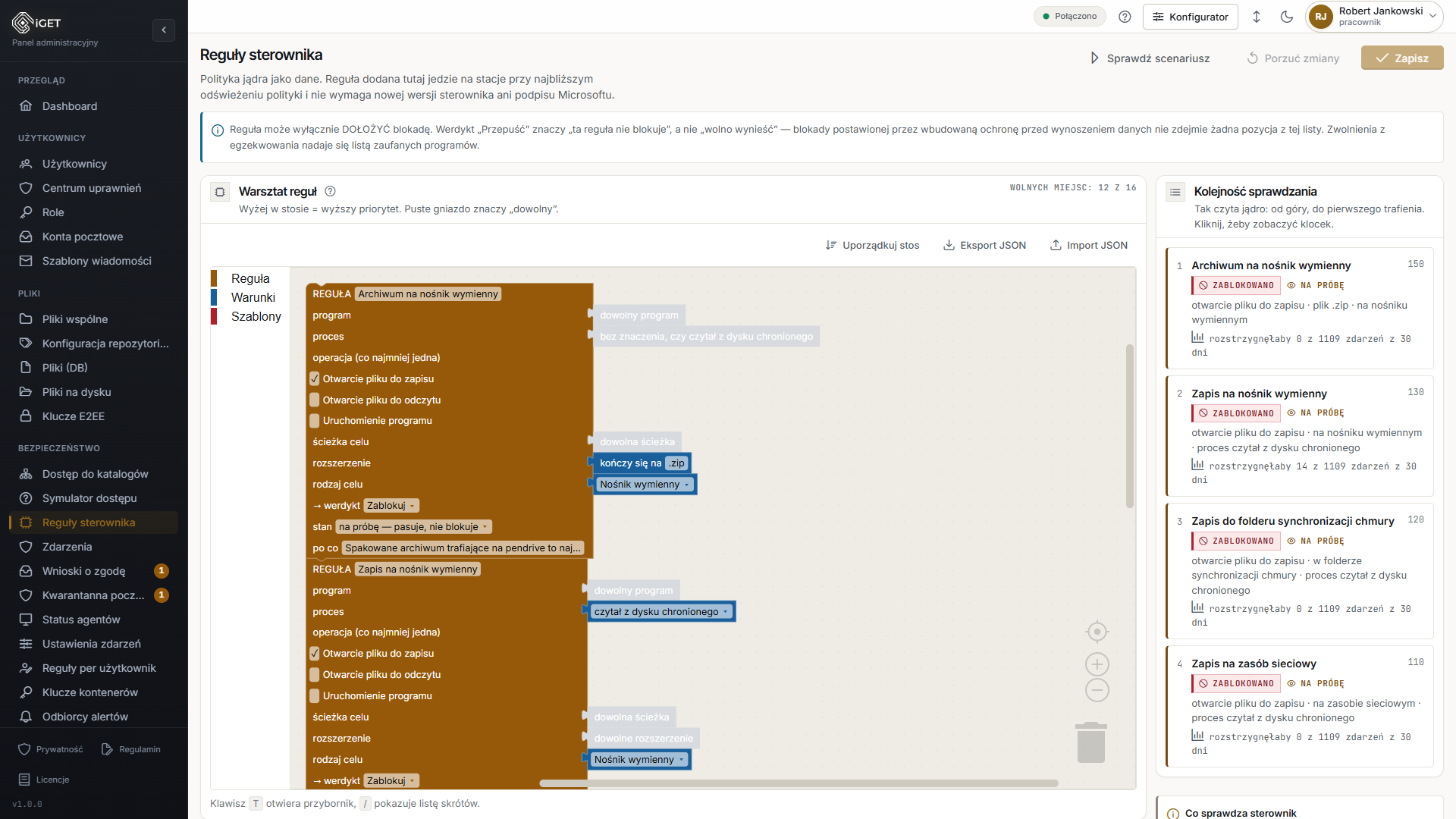
Driver rules as data
Product view · demonstration data · Polish interface Enlarge view ↗

No driver replacement

Driver rules as data

You assemble a new blocking rule from blocks in the panel and test it on recorded events before it reaches workstations. A rule can only add a block — never remove one.

Review queue

Events you can actually read

A series of denials collapses into one row with a counter, and the “For review” queue puts critical matters at the top. An alert arrives once per event, not once per denial.

Signed history

Offline access under control

The administrator decides whether and for how long a person may work without the server — from one minute to 72 hours. When time is up, the service closes applications and removes the drive, and the history from that period is signed and cannot be edited.

Workstation register

Signed app updates

iGet app releases carry a manifest signed with an Ed25519 key that the server does not store. The service checks the signature, certificate and checksum before installing anything.

Add-on Managed passwords

Password vault

Personal and team vaults encrypted on the client side. An entry remembers which program and domain it may be typed into, and managed passwords let people sign in without ever learning the password.

iGet / Case workflow
Case workflow
Product view · demonstration data · Polish interface Enlarge view ↗

Add-on Decisions with justification

Case workflow

Requests, approvals, deadlines and escalations. An approval can automatically grant access, change a classification or anonymise a document, and the justification stays in the case history.

07Deployment

Install it yourself. Keep control.

iGet is installed in the customer’s infrastructure: a server with the administration panel and a PostgreSQL database, plus the iGet app on Windows workstations. Documents do not travel to someone else’s cloud.

Server
Laravel 12 · PostgreSQL 17 · Redis
Workstations
Windows 10 / 11 x64
Interface
Polish and English
Cryptography
Ed25519 · X25519 · AES-256-GCM · Argon2id

How it works

Employee computer

Windows · iGet application · protected drive

↕ Synchronisation and permissions

Your company infrastructure

iGet server · documents · administration panel

  1. 01

    Demo and pilot

    One process, one department, 20–30 workstations. We test the policy on real work, not on slides.

  2. 02

    Server and policy

    Server installation, roles and folders, classification levels and the workstation protection policy set in the panel.

  3. 03

    Workstations

    The iGet app, system service and driver on Windows 10 and 11 computers. Working drives are created for users.

  4. 04

    Oversight

    Event queue, alerts, workstation register and decision history — in one panel, in Polish and English.

08Compliance

Evidence for the audit instead of declarations.

iGet does not replace a lawyer or a certification. It provides the technical measures required by NIS2, the amended Polish National Cybersecurity System Act (KSC) and the GDPR — and a trail showing that those measures work.

NIS2 and KSC

Access control and multi-factor authentication, incident handling through the event queue and alerts, protection of workstations against data exfiltration, signed software updates.

GDPR

Access limited by folder and classification, anonymisation and metadata removal as controlled actions, a log of access to documents, encrypted working drives.

Audit

Every refusal has a reason, every exception an expiry date and a justification, and the history of offline work is signed. “Who, when and why” is answered by the panel, not by the administrator’s memory.

This description of features is not legal advice or a certification of compliance.

09FAQ

Questions we hear most often.

Do employees have to change the way they work?

No. Documents live on an encrypted drive that looks like an ordinary drive letter and open in the same programs as before. The only thing that changes is where data from that drive can go.

Where is the data stored?

On a server in your infrastructure and on the encrypted working drives of the workstations. iGet does not require the vendor’s cloud. If you use YubiKey OTP codes, they are verified by the Yubico service by default.

What exactly does iGet block?

At the operating-system kernel level, iGet stops data from the protected drive from being written to the desktop, Documents, USB media and cloud folders and, depending on policy, also blocks new network connections, program launches and printing. The clipboard, screenshots and keyboard shortcuts are handled by the iGet app based on kernel decisions. Keystrokes are not recorded.

What happens if someone closes the iGet program?

Closing, shutting down or attacking the iGet program immediately cuts off access to the encrypted drive, and if the system service disappears, the driver seals the volume at once. This protects against an ordinary user; accounts with operating-system administrator rights call for procedures we discuss during deployment.

Can people work without a connection to the server?

Yes, if the administrator allows it: for selected people they set a window from 60 seconds to 72 hours. When it ends, the drive is removed, and the signed, non-editable history of offline work reaches the server once the network is back.

Are files encrypted end to end?

The working drive is always encrypted. For private files synchronised with the server there is a workstation-side encryption mode in which only the user knows the key recovery code. The team repository is encrypted on the server with AES-256-GCM.

Does iGet work with Outlook?

Yes, with classic Outlook for Windows. The add-in checks a message before it is sent, and replacing an attachment with a secure link works for internal recipients.

Which systems are supported?

Workstations running Windows 10 and 11 (x64). The server runs in your infrastructure with a PostgreSQL database. The panel and the iGet app are available in Polish and English.

How are add-ons licensed?

The Password vault and Case workflow are licensed separately. The licence is verified without an internet connection, and after it expires everything keeps working for 14 days — after that only writing is paused, while reading remains available.

How do we start?

With a demo built around one process from your company, followed by a pilot on 20–30 workstations. Write to us and we will set a date.

10Contact

We’ll show it on your process.

Pick one process — contracts, HR, finance — and we will show how iGet protects it from the drive to the server.

Already have an account? Go to the panel →

Enlarge view

100%

Wheel or pinch: zoom · Drag: pan · + / − / 0 · Esc: close